


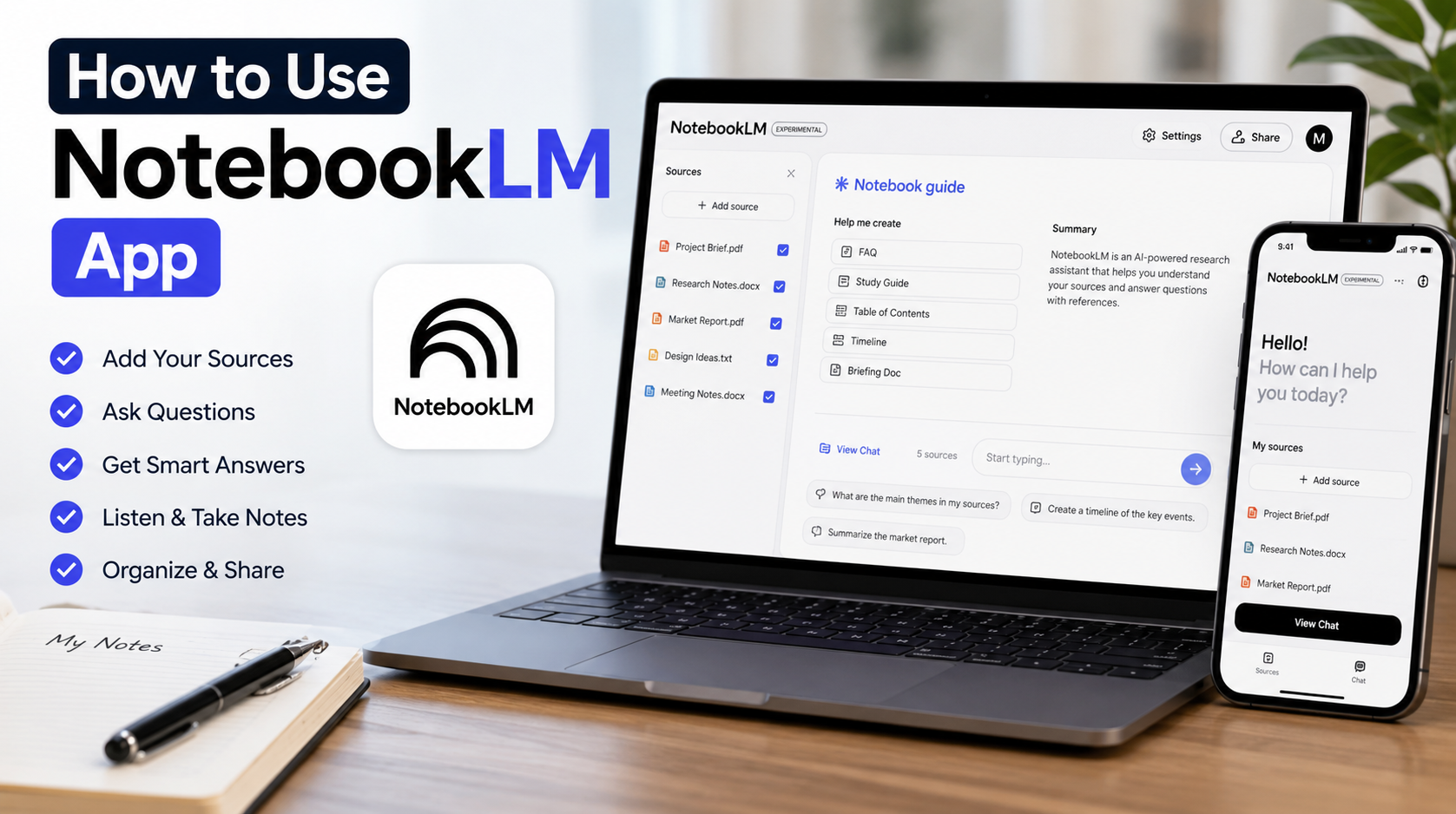
Table of Contents
- Introduction
- What Is NotebookLM App?
- Why People Are Using NotebookLM
- How to Get Started with NotebookLM App
- How to Create Your First Notebook
- How to Upload and Organize Sources
- How to Chat with Your Documents
- How to Generate Summaries, Notes, and Study Guides
- How to Use Audio Overviews
- Best Features of NotebookLM App
- Practical Ways to Use NotebookLM
- Tips to Get Better Results
- Common Mistakes to Avoid
- Is NotebookLM Safe?
- Final Thoughts
- Frequently Asked Questions (FAQs)
How to Use NotebookLM App: A Complete Beginner-to-Advanced Guide (2026)
How to Use NotebookLM App: Artificial intelligence has changed the way people study, work, research, and organize information. Instead of spending hours reading lengthy documents or searching through countless notes, modern AI tools can help you understand information much faster. One of the most useful tools in this space is NotebookLM App, Google’s AI-powered research assistant designed to work directly with your own documents and sources.
If you’ve recently heard about NotebookLM and are wondering how to use NotebookLM App effectively, you’re in the right place. Whether you’re a student preparing for exams, a content creator researching articles, a business professional organizing reports, or simply someone who wants smarter note-taking, NotebookLM can save an incredible amount of time.
In this complete guide, you’ll learn everything from creating your first notebook to uploading files, asking intelligent questions, generating summaries, creating study guides, using Audio Overviews, and maximizing every feature available. By the end of this article, you’ll know exactly how to use NotebookLM App like an experienced user.
What Is NotebookLM App?
NotebookLM App is an AI-powered notebook developed by Google that helps users understand, organize, summarize, and interact with their own documents. Unlike traditional AI chatbots that answer questions using general internet knowledge, NotebookLM focuses primarily on the documents and sources you provide. This makes its responses far more accurate for your personal research and projects.
Think of it as having a personal research assistant sitting beside you. Instead of reading hundreds of pages yourself, NotebookLM reads everything you’ve uploaded and answers questions based on those materials. Whether the files include PDFs, research papers, presentations, meeting notes, websites, Google Docs, or text documents, the AI can quickly analyze and explain them.
One of the biggest advantages of NotebookLM is that it cites the sources used in its answers. This means you can easily verify where the information came from instead of blindly trusting AI-generated responses.
Why People Are Using NotebookLM
NotebookLM has quickly become popular because it solves a problem many people face every day—information overload. Reading dozens of documents manually can be exhausting, especially when you’re trying to find one specific detail.
Students appreciate NotebookLM because it transforms textbooks, lecture slides, and class notes into personalized study materials. Instead of rereading every chapter before an exam, they can simply ask questions and receive clear explanations based on their own course materials.
Professionals benefit just as much. Business reports, meeting transcripts, policy documents, training manuals, and project files become searchable through natural conversation. Instead of scrolling endlessly through folders, users simply ask NotebookLM what they need.
Content creators, bloggers, marketers, and researchers also use NotebookLM to organize research, generate outlines, summarize articles, compare multiple sources, and brainstorm ideas while staying grounded in reliable information.
How to Get Started with NotebookLM App
Getting started is surprisingly simple, even if you’ve never used an AI productivity tool before.
The first step is signing in with your Google account. Once you’re inside NotebookLM, you’ll be greeted by a clean dashboard where you can create your first notebook. Each notebook acts as a separate workspace dedicated to a specific topic or project.
For example, you could create separate notebooks for university assignments, client work, blog research, personal finances, business planning, or book summaries. Keeping different subjects organized into individual notebooks makes everything much easier to manage.
After creating your notebook, you’ll be prompted to add sources. These sources become the knowledge base NotebookLM uses to answer your questions accurately.
How to Create Your First Notebook
Creating a notebook is the foundation of using NotebookLM effectively. Start by giving your notebook a meaningful name that reflects its purpose.
For instance, if you’re researching digital marketing, name your notebook “Digital Marketing Research.” If you’re studying biology, use something like “Biology Semester Notes.” Organized naming helps tremendously once you begin creating multiple notebooks.
Next, begin adding your materials. NotebookLM supports various source types including PDFs, Google Docs, copied text, websites, presentations, and other supported documents. You can upload multiple files into the same notebook so the AI understands the complete context instead of relying on only one document.
As your notebook grows, NotebookLM automatically indexes everything in the background, making future conversations much more intelligent.
How to Upload and Organize Sources
Your sources determine the quality of NotebookLM’s responses. The better your documents, the better the AI performs.
You can upload lecture notes, eBooks, company reports, contracts, meeting transcripts, research papers, manuals, spreadsheets, or even articles you’ve written yourself. The AI analyzes each source and builds a searchable knowledge base specifically for your notebook.
It’s also helpful to organize similar materials together. Instead of mixing unrelated topics into one notebook, create dedicated notebooks for each project. This reduces confusion and improves response quality because the AI focuses only on relevant information.
If you’re working on a long-term research project, continue adding new sources over time. NotebookLM updates its understanding automatically, allowing your notebook to become increasingly valuable as your research grows.
How to Chat with Your Documents
This is where NotebookLM becomes incredibly powerful.
Instead of manually searching through dozens of pages, simply type questions into the chat interface. The AI searches your uploaded materials and generates responses supported by your documents.
For example, you can ask questions like:
- Summarize Chapter 5.
- What are the key findings?
- Compare these two reports.
- Explain this concept in simple language.
- What conclusions did the author reach?
- List all important statistics.
- Create revision notes.
Unlike ordinary chatbots, NotebookLM references your uploaded sources, making its answers far more trustworthy for research and study purposes.
You can continue asking follow-up questions naturally, almost like having a conversation with an expert who has already read every document for you.
How to Generate Summaries, Notes, and Study Guides
One of NotebookLM’s most useful abilities is converting complex information into easy-to-understand summaries.
Instead of spending hours highlighting important sections, you can ask NotebookLM to generate concise chapter summaries, executive overviews, revision notes, key takeaways, or simplified explanations.
Students especially benefit from automatic study guides. Upload an entire textbook or lecture series, and NotebookLM can identify major concepts, define technical terms, generate review questions, and explain difficult topics in plain English.
Professionals can use the same feature for business reports by requesting executive summaries that highlight the most important findings without reading every page.
This dramatically reduces preparation time while improving understanding.
How to Use Audio Overviews
One of NotebookLM’s standout features is Audio Overviews.
Instead of reading lengthy documents, NotebookLM can generate conversational audio discussions based on your uploaded sources. These AI-generated conversations explain the material in a natural, engaging way that feels similar to listening to a podcast.
This feature is especially useful for commuters, busy professionals, or students who prefer auditory learning. Rather than sitting in front of a screen, you can absorb information while walking, exercising, or traveling.
Audio Overviews also simplify difficult subjects by presenting ideas conversationally instead of using dense academic language.
Best Features of NotebookLM App
NotebookLM offers numerous intelligent features that go beyond basic note-taking.
Perhaps the most valuable feature is source-grounded responses. Every answer references your uploaded materials instead of relying solely on general AI knowledge. This greatly reduces misinformation.
Another excellent feature is intelligent summarization. Long documents become manageable through concise summaries, key points, timelines, and outlines that help users grasp information quickly.
NotebookLM also excels at brainstorming. Whether you’re writing articles, preparing presentations, planning research, or developing business strategies, it can organize ideas into logical structures while staying connected to your uploaded sources.
The collaborative nature of notebooks also makes project management easier because everything remains centralized within one workspace.
Practical Ways to Use NotebookLM
NotebookLM fits into many different workflows.
Students can upload lecture slides, textbooks, assignments, and research papers. The AI then becomes a personalized tutor capable of explaining concepts, generating quizzes, and preparing revision materials.
Writers and bloggers can upload research articles before creating outlines, comparing sources, identifying trends, and drafting structured content based on reliable references.
Businesses can store company documentation, onboarding manuals, meeting notes, product specifications, marketing research, customer feedback, and internal policies. Employees can then quickly retrieve information without manually searching through folders.
Researchers benefit from literature reviews, document comparisons, evidence organization, and identifying recurring themes across numerous academic papers.
Tips to Get Better Results
NotebookLM performs best when you provide high-quality information.
Upload complete documents whenever possible instead of isolated paragraphs. Richer context allows the AI to produce more comprehensive and accurate responses.
Ask specific questions rather than vague ones. Instead of asking “Tell me about this,” try asking “What are the three main arguments in Chapter 4?” or “Compare the conclusions from these two reports.”
Keep notebooks focused on one topic. Mixing unrelated materials often produces weaker answers because the AI has to interpret too many different contexts simultaneously.
Continue refining conversations with follow-up questions. The more context you provide, the more useful NotebookLM becomes.
Common Mistakes to Avoid
Many beginners accidentally reduce NotebookLM’s effectiveness through poor organization.
One common mistake is uploading unrelated documents into a single notebook. Mixing travel plans, university notes, recipes, business reports, and financial statements creates unnecessary confusion.
Another mistake is expecting NotebookLM to know information that isn’t included in your uploaded sources. While it has general AI capabilities, its greatest strength comes from analyzing your own documents.
Some users also ignore source verification. Although NotebookLM provides citations, it’s still good practice to review important information directly from the original document before making critical decisions.
Finally, avoid asking overly broad questions when a focused prompt would produce clearer answers.
Is NotebookLM Safe?
Many users wonder whether uploading personal documents is secure.
NotebookLM is designed to analyze the documents you intentionally provide. Like any cloud-based productivity service, users should review Google’s current privacy policies and avoid uploading highly confidential or legally sensitive information unless they’re comfortable with the applicable terms and organizational policies.
For everyday educational materials, research papers, notes, presentations, and general work documents, NotebookLM provides a convenient environment for organizing and understanding information more efficiently.
Using strong account security practices, such as enabling two-factor authentication on your Google account, also helps protect your data.
Final Thoughts
Learning how to use NotebookLM App can completely change the way you study, research, write, and manage information. Instead of feeling overwhelmed by hundreds of pages of documents, you gain an intelligent assistant that understands your materials and helps you find answers within seconds.
Whether you’re a student preparing for exams, a professional handling complex reports, a researcher analyzing multiple sources, or a content creator organizing ideas, NotebookLM significantly improves productivity while keeping your work grounded in your own documents.
As Google continues improving AI-powered productivity tools, NotebookLM is becoming one of the most valuable assistants available for anyone who regularly works with information. The sooner you begin organizing your documents into smart notebooks, the sooner you’ll experience how much time and effort this powerful tool can save.
Frequently Asked Questions (FAQs)
1. What is NotebookLM App used for?
NotebookLM is an AI-powered research and note-taking assistant that helps users analyze, summarize, organize, and chat with their own documents.
2. Is NotebookLM free?
NotebookLM offers access for many users, though available features and limits may vary depending on your Google account and subscription plan.
3. Can NotebookLM summarize PDFs?
Yes. You can upload PDF documents and ask NotebookLM to generate summaries, key points, outlines, or simplified explanations.
4. Does NotebookLM support websites?
Yes. You can add supported web content as sources, allowing NotebookLM to reference that information during conversations.
5. Can students use NotebookLM?
Absolutely. Students use NotebookLM for lecture notes, textbooks, revision guides, exam preparation, research, and assignment organization.
6. Does NotebookLM cite its sources?
Yes. One of its strongest features is providing citations to the uploaded sources it used when generating responses, making it easier to verify information.
7. Can NotebookLM replace ChatGPT?
Not exactly. NotebookLM is optimized for working with your own documents and research, while general-purpose AI assistants are designed for broader conversations and tasks. Many users find that the two tools complement each other.
8. Is NotebookLM good for content creators?
You May Also Read:
Dave Ramsey Investment Calculator: A Practical Guide to Estimating Your Future Wealth
Vladimir Duthiers Salary: Estimated Earnings, Career Growth, and CBS News Success


